This article explains how to use the Lumary CM Mobile Experience to view sessions based on your day from a calendar, and how to view the related client's details.
Required packages and permissions
Available with: Lumary 22 minor release 2 and later.
Permission set: Lumary - CM Mobile User and Lumary - Custom Settings
Navigating the homepage
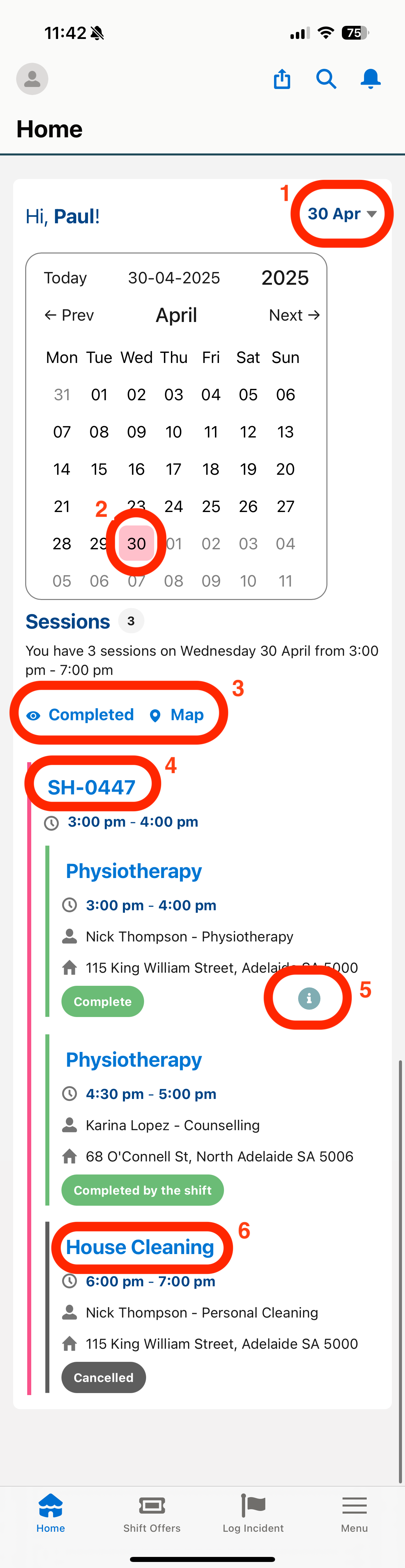
The homepage is where you will find your list of Sessions for the day.
 |
|
-
Change the date you're viewing
On the Homepage, the date defaults to the current day. You can change the date being viewed (2) to the future or the past.
This lets you:
-
- preview sessions for the future and prepare notes for those sessions in advance, and
- view sessions in the past to update notes or complete sessions that have been missed.
-
View completed sessions and a map
Once sessions have been completed or cancelled, their status will be updated accordingly. The home page will hide those sessions. To show or hide completed and/or cancelled sessions, tap on the Completed button.
Need to see a map of where your day's sessions are located? Tap on the Map button to show or hide the map.
-
Shift Details
Tap on the name of the shift to navigate to the shift record, where you can view shift messages. Shifts with an (i) icon indicate these shifts have messages.
-
Session Employee Messages
Sessions with an (i) icon indicate these sessions have messages you should read before attending the appointment.
-
Open a session
To open a session, tap on the title. This will take you to that session's page, where you can:
-
- view session details,
- view and navigate to attending clients,
- start and stop travel,
- start and stop transporting clients,
- start and stop the session, and
- add/update case notes.
|
View client details
View information about the client, make a call or capture the client's signature.
- Tap the appointment to open it
- Tap the name of the client to open the clients profile
- Tap the Sign button to capture the client's signature
- Tap the Call button to make a call.